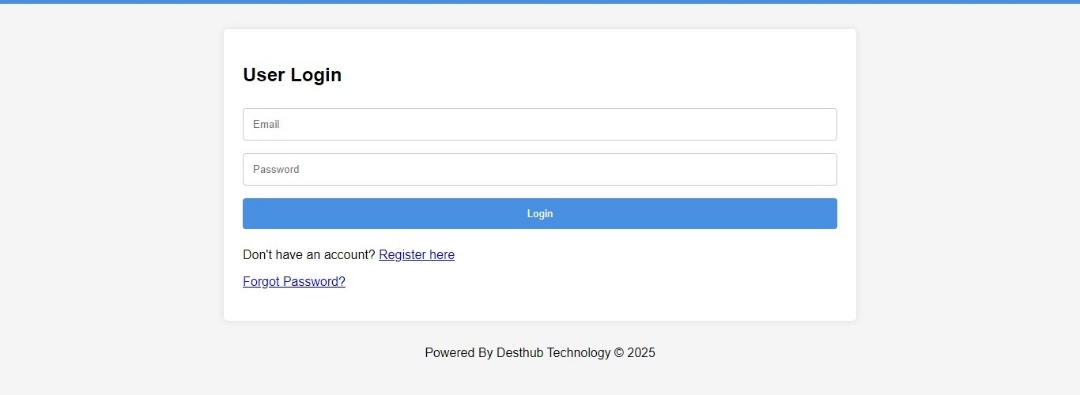

DestHub Event Management System
A Comprehensive Guide
The DestHub Event Management System is a web-based application designed to streamline the organization, registration, and management of church events.In this article, we will explore the features of the system and provide step‐by‐step instructions for both administrators and regular members.
Key Features
1. User Authentication and Registration
Authentication: Secure login and registration for users (members).
Password Reset: Users can request a password.
Admin Management: Designate certain users as admins who have elevated privileges, such as creating, editing, and deleting events.
2. Event Creation, Editing, and Deletion (Admin-Only Functionality):
Admins can create new events by providing details such as title, date/time, venue, description, category, and optional live stream URLs.
Paid vs. Free Events: During event creation, admins can specify if an event is free or paid. For paid events, they can also set a fixed ticket price.
Donation Integration: Members can add an optional donation that is added to the ticket price (or serves as the payment amount for free events).
Edit and Delete Events: Admins have access to an event management section where they can update event details or delete an event from the database.
3. Event Registration and Payment Integration
Member Event Registration: Members can register for events by selecting an event and providing any additional donation amount. For paid events, the system calculates the total amount (ticket price plus donation) and launches the Paystack payment window. For free events, if a donation is provided, the donation is processed.
QR Code and PDF Ticket Generation: Upon successful registration, a unique QR code is generated for each ticket. Additionally, a PDF ticket is created with event details for check-in purposes.
4. Volunteer Management and QR Code Verification
Volunteer Registration: Admins can register volunteers (such as ushers) and volunteers can self-register.
QR Code Scanning: Volunteers use QR Code scanner to verify tickets at the event venue.
5. Event Reporting
Reports Generation: Admins can generate reports of registered members and attendees. Reports are displayed in a table and can also be downloaded as a PDF.
How to Use the Software
For Administrators
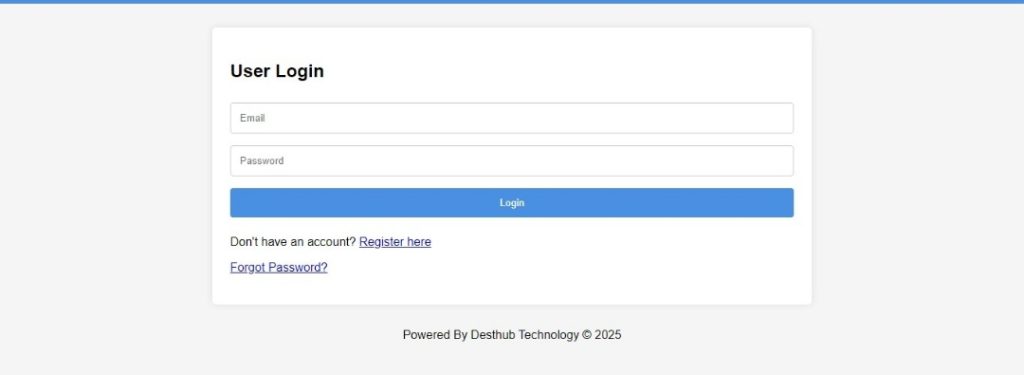
Login & Admin Setup: Log in using your admin credentials. In the admin management section, you can add new admins by providing a user UID.
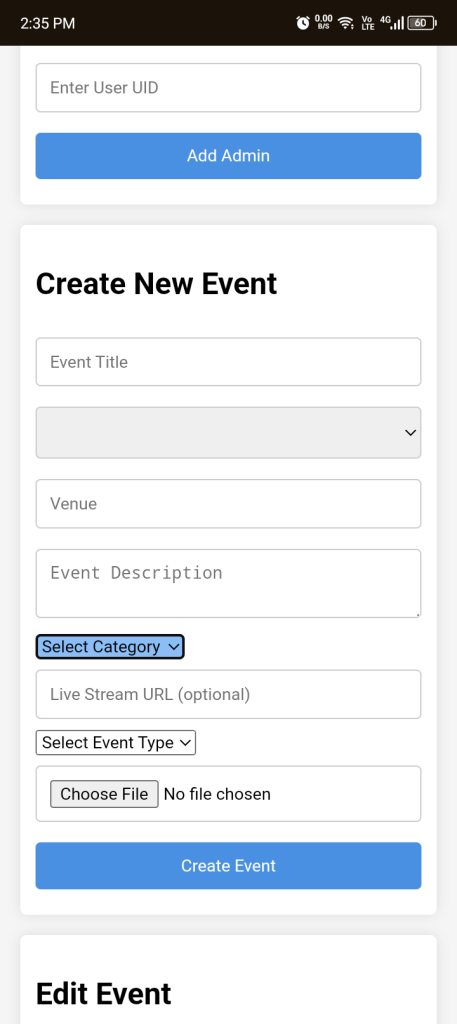
Event Creation: Navigate to the event creation form.
- Enter event details such as title, date/time, venue, and description.
- Select a category and optionally include a live stream URL.
- Select Event Type: Choose either "Free" or "Paid". (For paid events, additional fields will appear)
- Ticket Price: Set a fixed ticket price.
- Paystack Payment Link: (Optional) Enter a payment link provided to you by DestHub representative if needed.
- Upload any supporting media if required.
- Submit the form to Save the event.
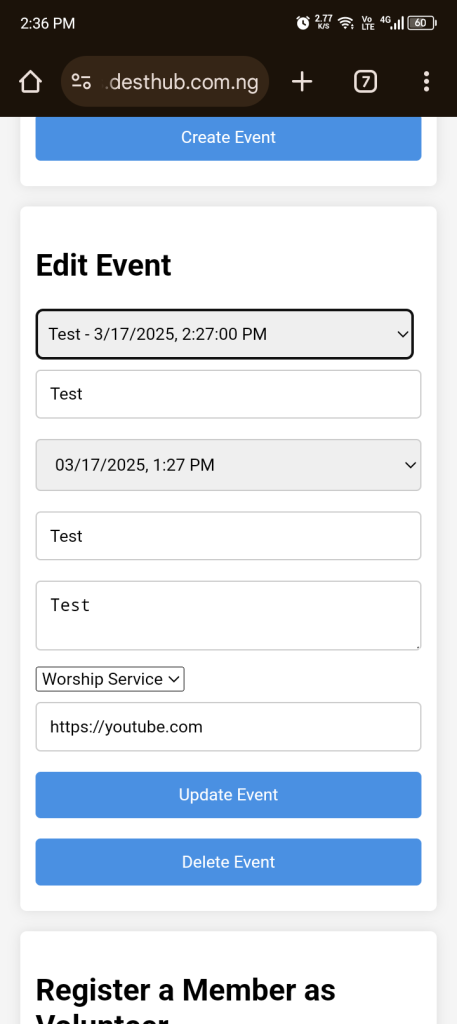
Editing & Deleting Events: In the admin section for editing events, select an event from the dropdown. The event details will load into the edit form where you can update information. To delete the event, click the “Delete Event” button. You will be prompted for confirmation; once confirmed, the event will be removed from the database.
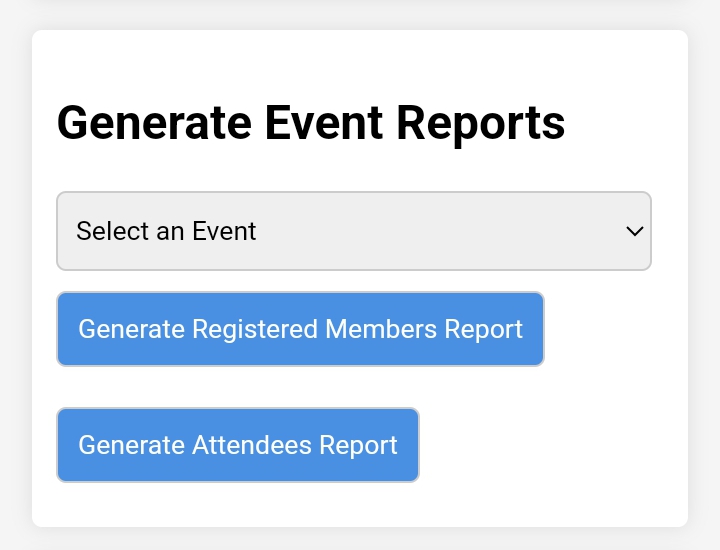
Reports: Use the event reports section to generate PDFs of registered members or attendees. Select the event and click the appropriate report button to view and download the report.
For Members
User Registration: If you’re a new user, register by providing your name, email, and password. Once registered, log in with your credentials.
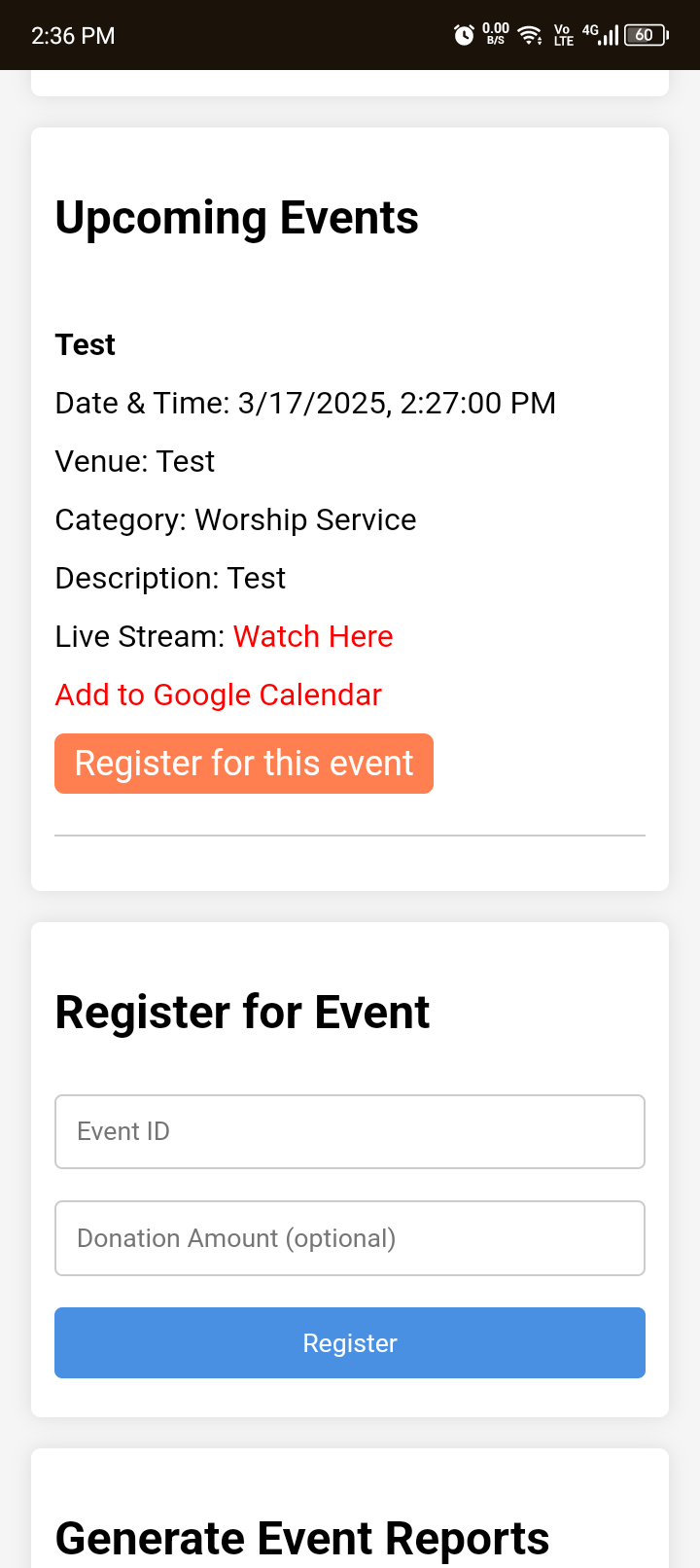
Viewing Events: Browse the list of upcoming events. Each event shows key details, and you can add the event to your calendar using the provided link.
Event Registration and Payment:
- Click “Register for this event” to open the registration form. The form auto-fills the event ID.
- Enter an optional donation amount: For paid events, the total payment will be the sum of the ticket price (set by the admin) plus your donation. For free events, if you provide a donation, that amount will be processed.
- Submit the registration: If a payment is required, the Paystack payment window will appear. Once payment is processed and verified, your registration is confirmed.
- A unique QR code is generated and a PDF ticket is created for check-in at the event. (Note: You are advised to keep this ticket as safe as possible as it is required for entry into event)
Password Reset: On the login page, click the “Forgot Password?” link. Enter your email address when prompted to receive a password reset email.
For Volunteers (e.g. Ushers)
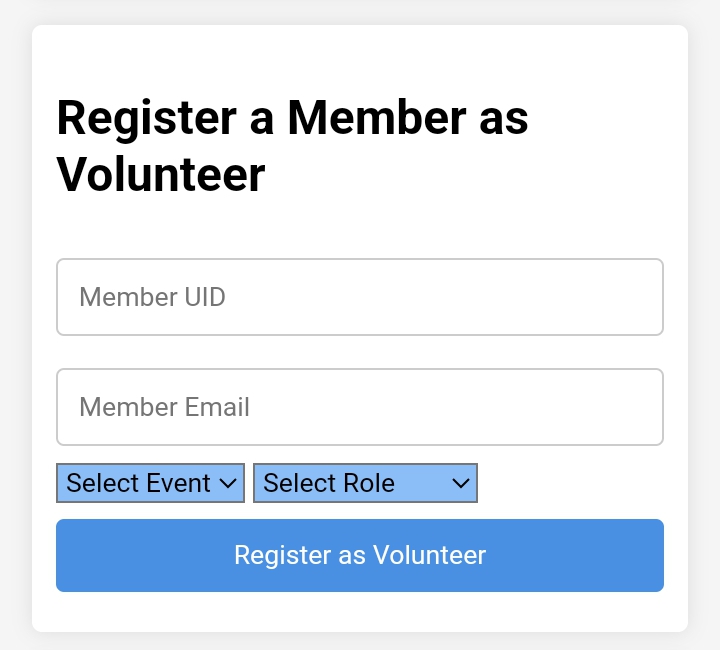
Volunteer Registration: Volunteers can self-register using the provided section (if you’re an usher, for instance). Once registered and verified, the volunteer interface (QR code scanner) is activated.
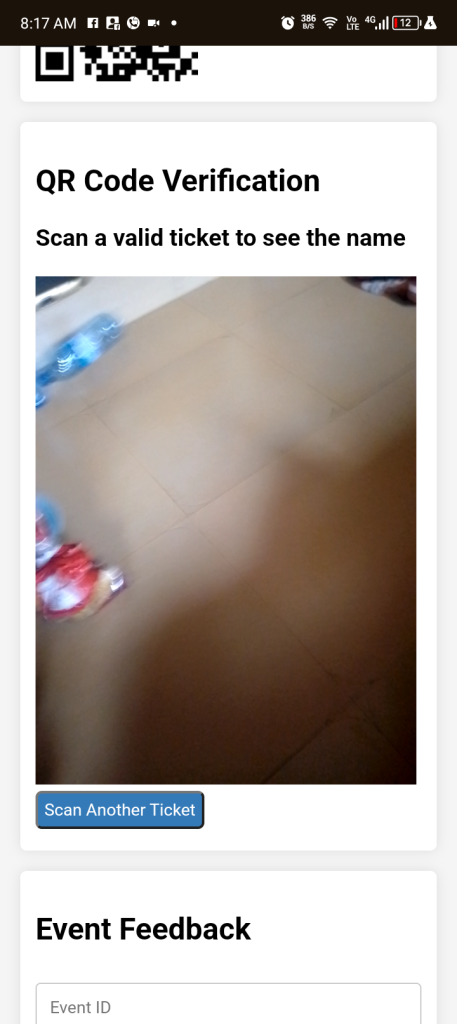
QR Code Verification: At the event venue, volunteers use the QR scanner to scan attendees’ tickets. The system verifies the ticket and marks the attendee as checked in.
Conclusion
The DestHub Event Management System is a robust, feature-rich application that simplifies the management of events from creation and registration to volunteer management and reporting. With Paystack processing payments, and additional features like QR code scanning and PDF ticket generation, this system provides a comprehensive solution for churches looking to modernize their event management process.Whether you’re an admin creating events or a member registering for an event, the system offers an intuitive interface and seamless integration between front-end functionalities and secure back-end processing.
